
How to Generating Lesson Plans

The Complete Guide to Generating Lesson Plans on DynamicPro
Lesson planning is one of the most important parts of effective teaching—but it can also be time-consuming and repetitive. That’s where DynamicPro comes in. Our platform is designed to help teachers create professional, structured, and curriculum-aligned lesson plans quickly and effortlessly.
In this detailed guide, you’ll learn how to create an account, generate lesson plans step by step, customize them to your needs, and download them as polished PDF documents ready for classroom use.
Why Lesson Planning Matters
Before diving into the process, it’s important to understand why a good lesson plan is essential:
- It provides a clear roadmap for your teaching
- Helps you stay organized and manage time effectively
- Ensures learning objectives are met
- Improves student engagement and outcomes
- Makes assessment and evaluation easier
However, creating these plans manually every time can be stressful. DynamicPro simplifies this entire process.
Getting Started with DynamicPro
DynamicPro is built specifically for educators who want efficiency without sacrificing quality. Whether you’re teaching in a primary school, secondary school, or even handling private lessons, the platform adapts to your needs.
Let’s walk through how to use it.
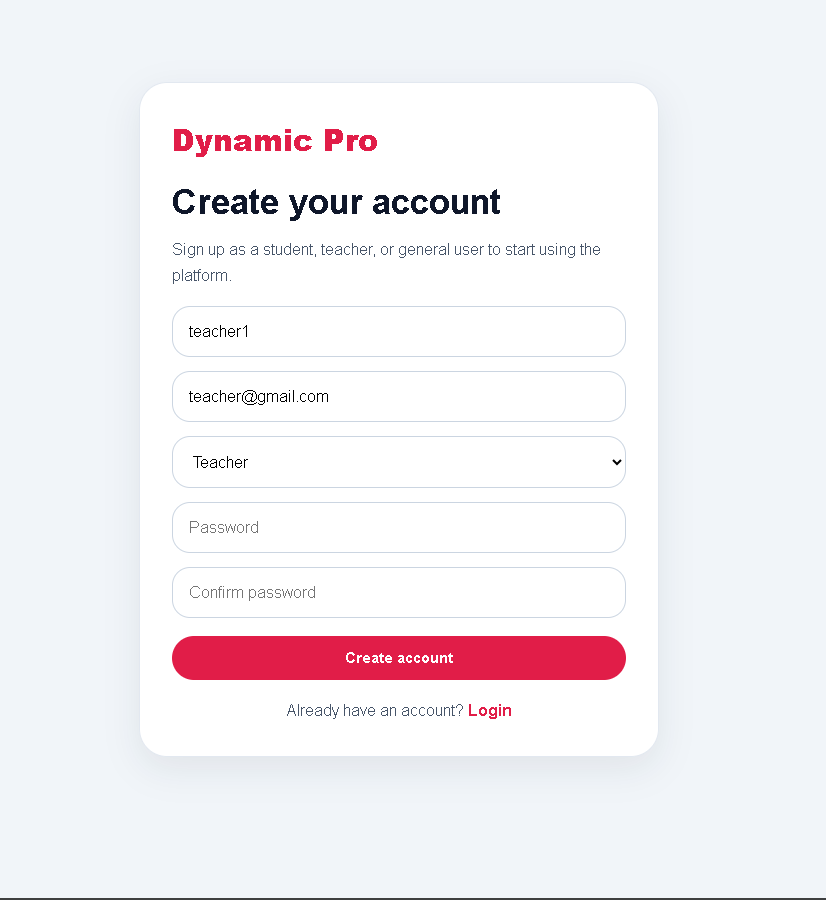
Step 1: Create Your Teacher Account
To begin, visit dynamicpro.net.ng and register as a teacher.
How to Sign Up:
- Click on the Sign Up or Register button on the homepage
- Fill in your details:
- Full name
- Email address
- Password
- Select your role as a Teacher
- Submit your registration form
- Verify your email if required
Why This Step Matters:
Creating an account gives you access to:
- Your personal dashboard
- Saved lesson plans
- Editing tools
- Download options
Once your account is ready, log in to continue.

Step 2: Access Your Dashboard
After logging in, you’ll be directed to your dashboard.
This is your control center where you can:
- Create new lesson plans
- View previously generated plans
- Edit and manage your content
Look for the Lesson Plan section—this is where the main magic happens.
Step 3: Navigate to the Lesson Plan Feature
Click on the Lesson Plan option from your dashboard menu.
This will take you to a form designed to collect all the necessary information needed to generate a high-quality lesson plan.
DynamicPro uses your inputs to structure a professional plan automatically, saving you hours of manual work.
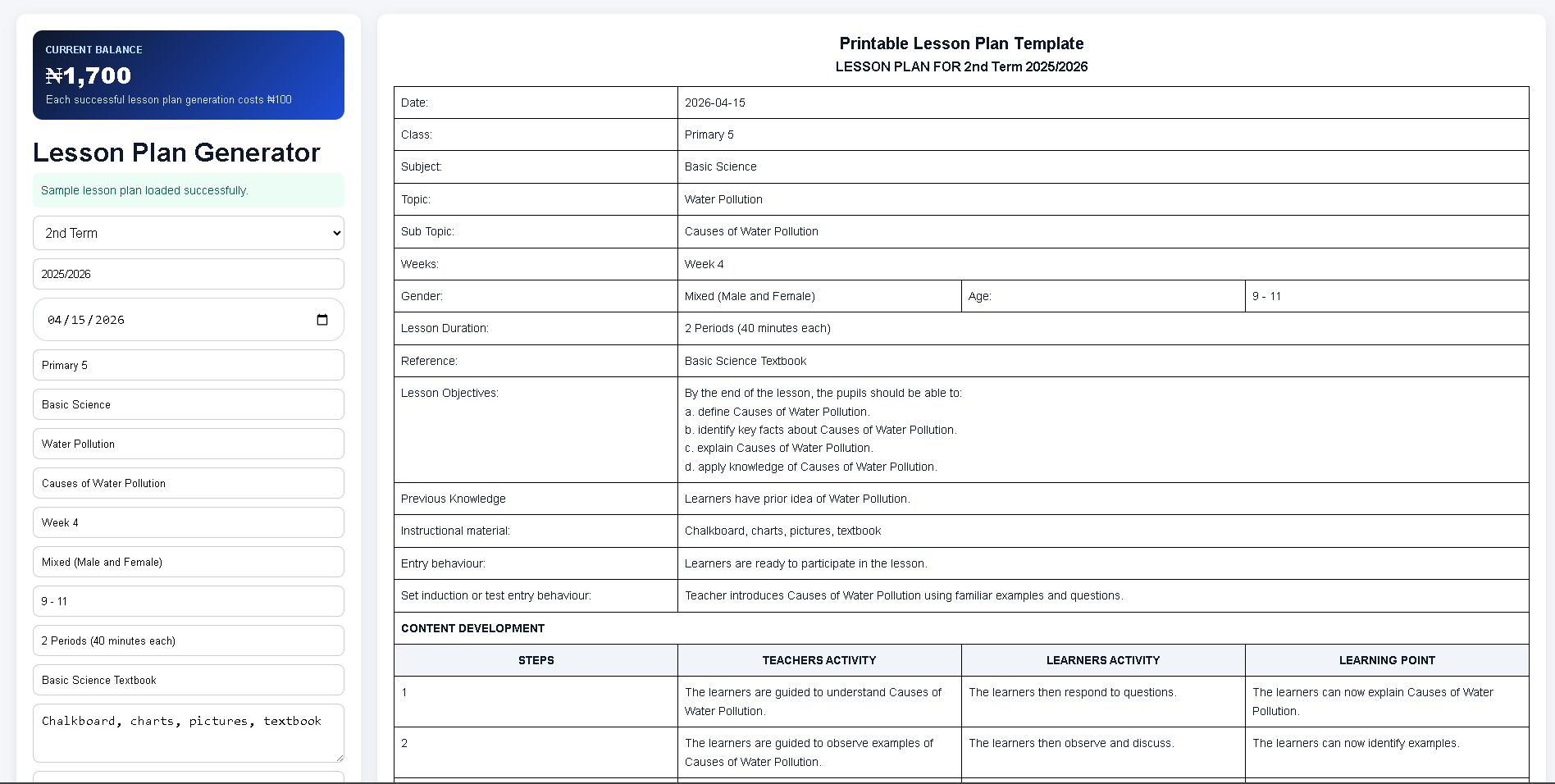
Step 4: Fill in the Required Details
This is the most important step in the process. The quality of your lesson plan depends on the information you provide.
Key Fields You’ll Need to Complete:
1. Subject
Specify the subject you are teaching (e.g., Mathematics, English, Biology).
2. Class or Grade Level
Indicate the level of your students (e.g., Primary 5, JSS 2, SS 1).
3. Topic
Enter the specific topic for the lesson.
4. Duration
State how long the lesson will take (e.g., 40 minutes, 1 hour).
5. Learning Objectives
Clearly define what students should learn by the end of the lesson.
6. Teaching Materials
List any materials or resources needed:
- Textbooks
- Charts
- Visual aids
- Digital tools
7. Instructional Procedures
Explain how the lesson will be delivered:
- Introduction
- Main teaching activities
- Student participation
- Conclusion
8. Assessment Methods
Describe how you will evaluate student understanding:
- Classwork
- Quizzes
- Oral questions
- Assignments
Pro Tip:
The more detailed your inputs, the more refined and useful your generated lesson plan will be.
Step 5: Generate Your Lesson Plan
Once you’ve completed all the required fields:
- Click on the Generate Lesson Plan button
Within seconds, DynamicPro will create a structured, professional lesson plan tailored to your inputs.
What You’ll Get:
- Clearly defined objectives
- Step-by-step teaching procedures
- Organized lesson structure
- Assessment strategies
Step 6: Review and Edit Your Lesson Plan
One of the biggest advantages of DynamicPro is flexibility.
After generating your lesson plan, you can:
- Review the entire content
- Make edits or improvements
- Adjust wording to match your teaching style
- Add extra notes or instructions
This ensures your lesson plan is not just automated—but personalized.
Step 7: Download Your Lesson Plan as PDF
Once you are satisfied with your lesson plan:
- Click on the Download as PDF button
Your lesson plan will be saved as a clean, professional document that you can:
- Print for classroom use
- Share with colleagues
- Submit for official documentation
Additional Benefits of Using DynamicPro
1. Time Efficiency
Generate complete lesson plans in minutes instead of hours.
2. Professional Structure
All lesson plans follow a clear and organized format.
3. Easy Customization
Edit and refine your plans anytime.
4. Accessibility
Access your lesson plans from anywhere with your account.
5. Consistency
Maintain high teaching standards across all your lessons.
Tips for Best Results
To get the most out of DynamicPro:
- Always provide clear and detailed inputs
- Review generated plans before downloading
- Customize content to suit your classroom environment
- Save multiple versions for different classes
Frequently Asked Questions
Do I need technical skills to use DynamicPro?
No. The platform is user-friendly and designed for all teachers, regardless of technical experience.
Can I edit my lesson plan after generating it?
Yes. You can fully edit and customize your lesson plan before downloading.
Is the PDF downloadable multiple times?
Yes. You can download your lesson plan whenever you need it.
Final Thoughts
DynamicPro is more than just a tool—it’s your teaching assistant. It removes the stress of lesson planning and allows you to focus on what truly matters: delivering impactful lessons to your students.
By following the steps in this guide, you can:
- Create your teacher account
- Generate structured lesson plans
- Customize them to your needs
- Download and use them instantly
If you haven’t started yet, visit dynamicpro.net.ng today and experience a smarter, faster way to plan your lessons.
Start simplifying your lesson planning with DynamicPro now!

About the Author:
Femi Victor(Techland Dynamic) is an experienced EdTech consultant and web developer with over 10 years of experience in creating digital learning tools for Nigerian schools. He is passionate about simplifying complex educational data and helping students navigate the admission process.



Comments
No comments yet.